Finding your way around
The parts of the Parley window, server folders, the quick switcher and search.
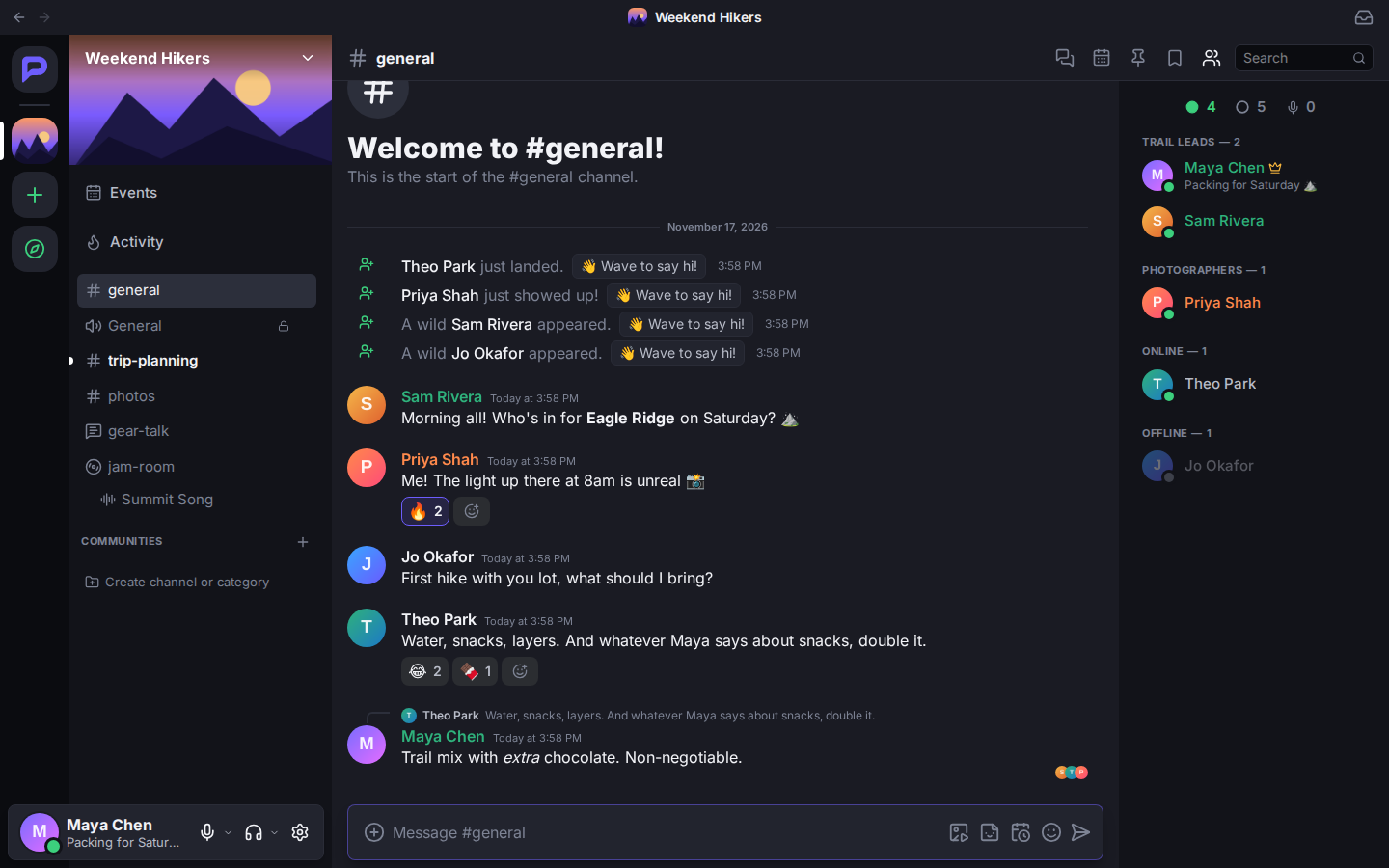
The window at a glance
From left to right:
- The server list. At the top is Direct Messages, your private conversations and friends. Below it are your servers. At the bottom are Add a Server (+) and Discover (the compass).
- The channel list for the server you're in. The server's name and banner are at the top; click the name for the server menu. Your own panel sits at the very bottom.
- The conversation. Messages, with the message box underneath. The bar across the top has the channel name and buttons for threads, pins, the member list, search and your inbox.
- The member list. Everyone who can see the channel, grouped by role, then online and offline. Click anyone to see their profile.
Your panel
The bottom-left corner is you. The microphone and headphones buttons mute and deafen you. The small arrow beside each one picks your microphone or speakers. The cog opens User Settings.
Click your picture to:
- set your status: Online, Idle, Do Not Disturb or Invisible, for good or for a while
- Set a custom status: an emoji and a short line that everyone sees
- Edit Profile
- Switch Accounts if you use more than one
While you're in a call, a Voice Connected card sits just above your panel, with the call's controls. See Voice and video.
Server folders
A long server list is easier to manage in folders:
- Drag one server onto another to make a folder.
- Drag more servers in, or drag them back out.
- Click a folder to open or close it. A closed folder shows small previews of what's inside.
- Right-click a folder and choose Folder Settings to name it, give it a colour or remove it.
You can also right-click any server and use Add to Folder, Move Up and Move Down. Your layout is saved to your account, so it follows you to every device.
Right-click menus
Almost everything has a menu. Right-click it, or press and hold on a phone:
- A server: Mark As Read, Invite People, notification settings, Server Settings, Leave Server.
- A channel: Mark As Read, Pin Channel (keeps it at the top of the list), Invite People, Copy Link, mute and notification settings.
- A category: collapse or expand it, or all of them at once.
- A person: Profile, Message, Call, Add Friend, Invite to Server, Block, Report User.
- A message: see Messages.
The quick switcher
Press Ctrl+K (⌘+K on a Mac) and start typing the name of any server, channel or person. Press Enter to go there. Before you type, it lists your unread and recent places.
Searching messages
Type in the search box at the top right and press Enter. Results open in a panel beside the chat. Click Jump on any result to see it in its conversation.
- Choose where to search: This channel, This server or Everywhere (your DMs included).
- Sort by Most relevant, Newest or Oldest.
- Narrow it down with filters. The search box suggests them as you type:
| Filter | Finds messages… |
|---|---|
from: | sent by someone |
mentions: | that mention someone |
in: | in a channel |
has: | with a link, embed, image, video, file, sticker, poll or sound |
before: during: after: | from around a date |
pinned:true | that are pinned |
To go back to a particular day, use the calendar button in the top bar, or Ctrl+Shift+J. When you've scrolled far back, Jump to Present brings you back to the newest messages.
On a phone
Parley on a phone shows one thing at a time:
- Swipe right for the server and channel lists.
- Swipe left for the member list.
- Every screen has a back button at the top.
- Press and hold anything to get the menu you'd get from right-clicking on a computer.
The getting started checklist
New accounts see a short checklist: add a profile picture, add a friend, join or create a server, set a custom status, and add a passkey or turn on two-factor authentication (either one ticks it off). Each item takes you to the right place. Dismiss it whenever you like.
Getting help
This guide is always one click away:
- Help & Guide in the menu under your picture, and at the bottom of User Settings, opens the guide's front page.
- Every page of User Settings, Server Settings and Channel Settings has a Help button at the top. It opens the part of the guide about that page.
- The keyboard shortcuts sheet (Ctrl+/) links to Keyboard shortcuts.