Settings
Account security, privacy, appearance, accessibility, language and the desktop app's options.
Open User Settings with the cog beside your name in the bottom-left corner, or press Ctrl+,. Can't find something? Type in the search box at the top of the list. Instance admins also find Admin Console at the bottom of the list.
Account
- Account Info: change your display name, username or email. A new email is confirmed with a link first.
- Password: change it, and optionally log out everywhere else at the same time.
- Two-Factor Authentication: strongly recommended. Click Enable Two-Factor Auth, scan the code with an authenticator app, and type the 6-digit code to switch it on.
- Save your backup codes somewhere safe. They get you in if you lose your phone.
- Passkeys: sign in with your fingerprint, face or device PIN. Click Add a passkey. A passkey also counts as two-factor authentication for servers that require it of moderators.
- Account Standing: whether you've broken any rules recently. Normally it says All good.
- Server Bans: servers that have banned you, with Appeal this ban where the server allows it.
- Storage: how much of your upload space you've used.
- Year in Review: your year on Parley.
- Account Removal: disable or delete your account. See Getting started.
Data and privacy
- Choose whether others see when you've read their DMs, when you're typing, and what you're doing (activity status).
- Request all of my data prepares a download of everything Parley holds about you. It's ready within a day and kept for 7 days.
- Trusted link destinations: websites you told Parley to open without asking first.
Content and social
- Who can send you DMs: everyone, friends and server members, or friends only. Strangers' messages go to Message Requests.
- Who can send friend requests, and whether people can find you by searching.
- Sensitive media: show, blur, filter or hide it. You can choose separately for DMs from friends, DMs from others, servers and age-restricted channels.
- DM spam filter: how strictly to filter possible spam.
- The Safety Center has tips and links for staying safe.
Family Center
Parents and teens can link their accounts. A parent sees which servers the teen joins, who they add as friends and who they message, but never what the messages say. The teen gets a code under Link a parent, and the parent enters it under Link a teen account. Either one can Unlink.
Devices and connections
- Devices lists everywhere you're signed in. Log out one device, or Log out all other devices if you're worried someone else is using your account.
- Connections links GitHub, Twitch, Spotify or Steam, and shows them on your profile if you want.
- Authorized Apps lists apps and AI assistants you've let into your account. See Apps and bots.
Appearance
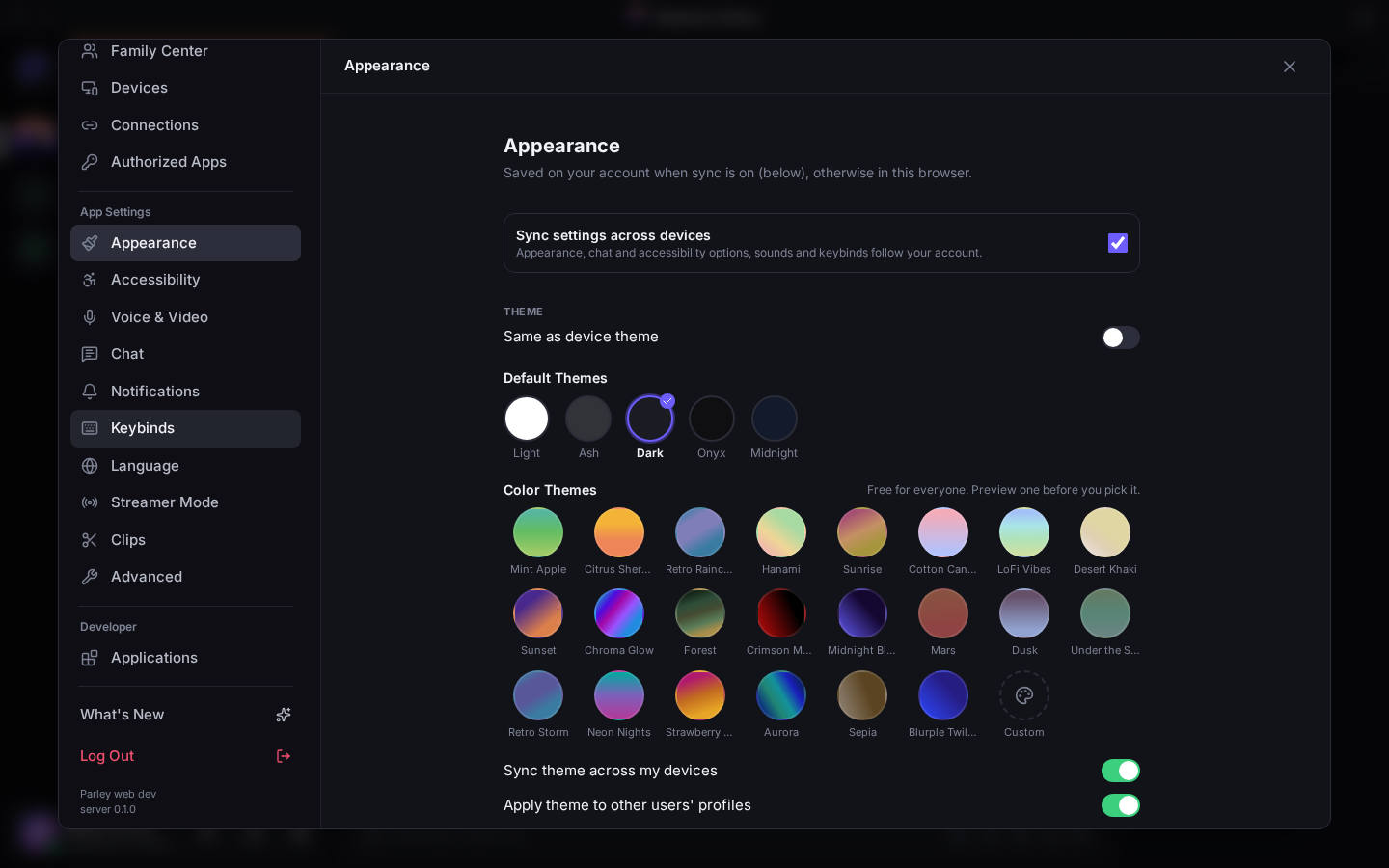
- Theme: Light, Ash, Dark, Onyx or Midnight. Color Themes offers ready-made colourful looks, and Custom lets you build your own. The editor checks your colours are easy to read.
- Default theme in servers: use a server's own theme, or always yours.
- Accent colour, chat font scaling and zoom level.
- Message display: Cozy, with avatars and spacing, or Compact, with more messages on screen. Also UI density.
- Role colours: show them in names, next to names, or not at all.
- Sync settings across devices keeps your appearance the same everywhere.
Accessibility
- Reduced motion cuts animations. High contrast and Saturation help with readability.
- Show on/off indicators adds ✓ and ✗ to switches, and Always underline links.
- Choose when animated emoji, GIFs, stickers and fancy name styles play.
- Text-to-speech rate, and the time format (12-hour or 24-hour).
Voice, chat and notifications
- Voice & Video: your microphone, speakers and camera, push-to-talk and noise suppression. See Voice and video.
- Chat: link previews, how big pictures are shown, emoji suggestions, when spoilers are revealed, and your own animated typing indicator.
- Notifications: see Notifications.
- Keybinds: see Keyboard shortcuts.
Language
Parley speaks English, Spanish, German, French, Italian, Dutch, Polish, Portuguese (Brazil), Russian, Turkish, Arabic, Japanese, Korean and Chinese (Simplified). Match system follows your device. Each language shows how much of it is translated.
Streamer Mode
Streaming or sharing your screen? Streamer Mode hides your personal details and invite links, and can silence sounds and notifications. The desktop app can turn it on by itself when OBS, Streamlabs or XSplit is running. Toggle it with Ctrl+Shift+X.
Clips
Enable Clips to save the last moments of a call with one key. Clips are recorded on your own device, and you can download or delete them here. See Voice and video.
Advanced
- Developer Mode adds Copy ID to menus. Some bots ask for these IDs.
- Desktop app only:
- start with your computer, start minimised, close or minimise to the tray
- the in-game overlay
- hardware acceleration
- App updates: choose the Stable channel (releases only) or Development (every new build; for the adventurous)