Voice and video
Join voice channels, call friends, share your screen, run stages and keep calls private.
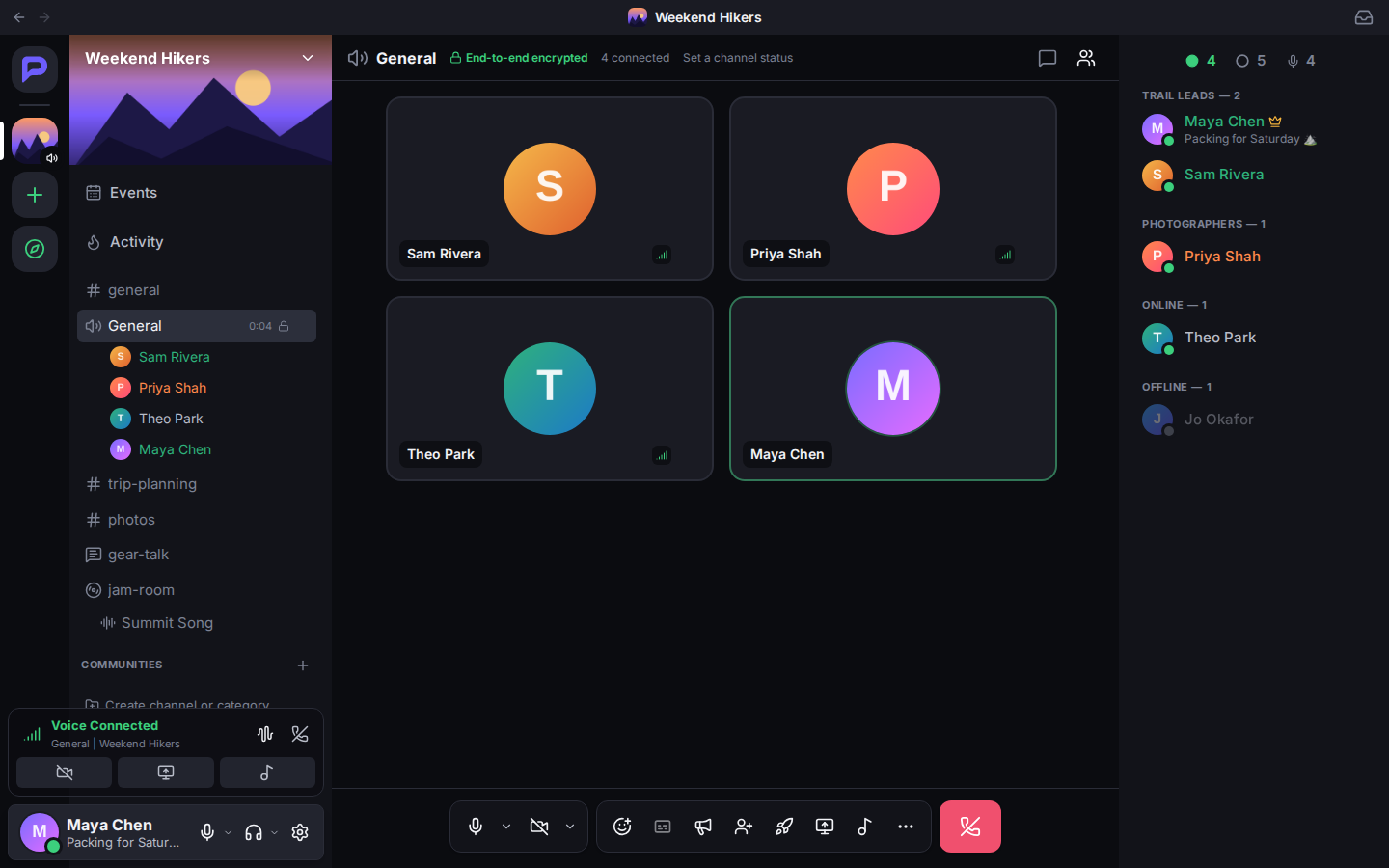
Joining a voice channel
Click a voice channel (the 🔊 ones), then Join Voice. You'll see who's there. Their picture lights up green when they talk.
The Voice Connected card above your panel shows you're in. From it you can:
- check the connection quality
- turn noise suppression on or off
- disconnect
You can keep chatting in text channels while you're in voice. If you wander off, a small call window follows you; click Back to the call to return.
The call controls
| Button | Does |
|---|---|
| Mute | Turns your microphone off. The arrow beside it picks your microphone, speakers and volumes. |
| Camera | Turns your camera on. The arrow lets you preview it and pick which camera. |
| Share Your Screen | Shows a window, a tab or your whole screen. |
| Reaction | Floats an emoji over the call. |
| Captions | Live subtitles of what people say, if the server has them. |
| Activities | Watch Together (YouTube in sync), games such as Tic-Tac-Toe, and apps. |
| Soundboard | Plays one of the server's short sounds to everyone. |
| More | Grid view, whether to show your own camera and people without video. |
| Disconnect | Leaves the call. |
Click someone's video to focus on it, and double-click for full screen. When someone shares their screen, click Watch Stream to see it, and zoom in to read small text.
Deafen (the headphones in your panel) mutes everything you hear, and your microphone with it.
Calling someone
In a DM or group DM, click Start Voice Call or Start Video Call in the top bar. The other person sees an incoming call with Join and Decline. If they miss it, they'll see that you called.
You can also bring a friend into a voice channel you're in: Invite to Voice sends them a message with Join.
Stages
Stages are for talks, Q&As and shows:
- Speakers are on stage. Everyone else is in the audience and listens.
- In the audience, click Raise Hand to ask to speak.
- Moderators can Invite to speak and Move to audience.
- Live stages from public servers show up in Discover → Stages.
Private calls
Calls in DMs can be end-to-end encrypted: only the people in the call can hear or see it, not even the server. Turn it on with the lock button in the DM's top bar.
To be sure nobody is listening in, compare the Safety code shown in the call out loud. If everyone sees the same code, the call is private. Captions and clips are off in encrypted calls.
Sounding your best
In User Settings → Voice & Video:
- Input Mode:
- Voice Activity sends when you talk.
- Push to Talk sends only while you hold a key. Set the key with Record Keybind. In a browser it works only while Parley's tab is in front; the desktop app hears it anywhere.
- Input Sensitivity sets how loud you need to be. Leave it on automatic unless people hear your keyboard.
- Noise Suppression: Enhanced removes keyboards, fans and background chatter. It runs on your own device.
- Echo Cancellation and Automatic Gain Control help on laptops and with speakers.
- Test Video previews your camera. Screen share quality is here too.
Clips
Turn on User Settings → Clips to keep the last 15 seconds to a minute of a call. Then press Save Clip (or Ctrl+Alt+C) to save it when something great happens.
In-game overlay
The desktop app can show who's talking on top of a full-screen game. Turn it on in User Settings → Advanced, and show or hide it with Ctrl+Shift+O.