Roles and permissions
Give people roles, decide who can do what, and make channels private.
Roles are labels you give members, such as Moderator, Artist or New here. Each role comes with permissions that decide what its members can do. A role can also have a colour and an icon shown beside their names.
Everyone in the server automatically has the @everyone role. Its permissions are what everybody can do.
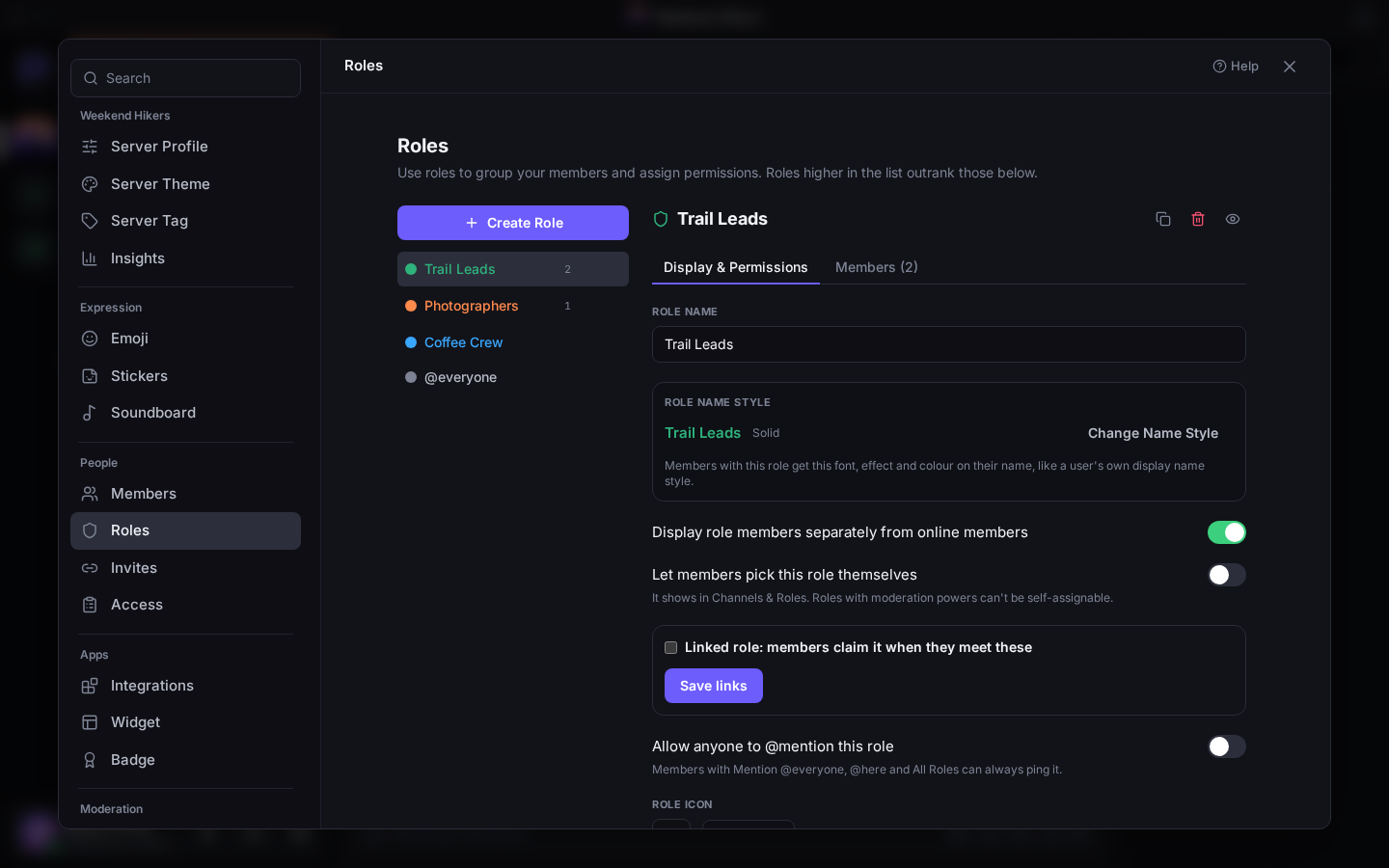
Making a role
- Open Server Settings → Roles and click Create Role.
- Give it a name and a colour. Optionally:
- give it a Role icon (an emoji or a small picture)
- Display role members separately in the member list
- Allow anyone to @mention this role
- Let members pick this role themselves
- Switch on the permissions it should have.
- Add people on the Members tab, or right-click someone in the member list and pick roles.
Duplicate Role copies a role, which is handy for making a similar one.
Which role wins
Roles are listed in order, and roles higher up outrank lower ones. Drag them, or use Move up and Move down.
- People can only manage roles below their own highest role.
- When roles disagree about a colour, the highest role's colour is used.
View Server As Role shows you exactly what a member with that role sees, so you can check your setup.
Permissions
Permissions are grouped: General, Membership, Text, Voice and Studio. Some that matter most:
| Permission | Lets people… |
|---|---|
| Administrator | Do everything, and skip every channel restriction. Give it sparingly. |
| Manage Server | Change the server's name, icon and settings. |
| Manage Roles | Create and assign roles below their own. |
| Manage Channels | Create, edit and delete channels. |
| Kick / Ban / Timeout Members | Moderate people. See Moderation. |
| Manage Messages | Delete and pin anyone's messages. |
| Mention @everyone | Ping the whole server. |
| Create Invite | Invite new people. |
| Manage Expressions | Add emoji, stickers and sounds. |
| Manage Events | Schedule events. |
| View Audit Log | See who changed what. |
Channel permissions
To make a channel private, or change what people can do in one channel:
- Right-click the channel, choose Edit Channel, then Permissions.
- Turn on Private channel to hide it from everyone except the roles and people you add.
- Or use Add role or member and set each permission to Allow (✓), Deny (✗) or Inherit (/, the server-wide setting).
Categories have permissions too. A channel that matches its category says Synced; Sync Now makes it match again after you've changed it.
The member list
Server Settings → Members lists everyone. Search, filter by role, see how each person joined, and give or take away roles. You can also select several people at once to kick or ban them.
Linked roles
A linked role is given automatically to people who've connected an account, for example Twitch subscribers. Set these up under Integrations.