Messages
Write, format, mention, react, reply, attach files, run polls, schedule and bookmark messages.
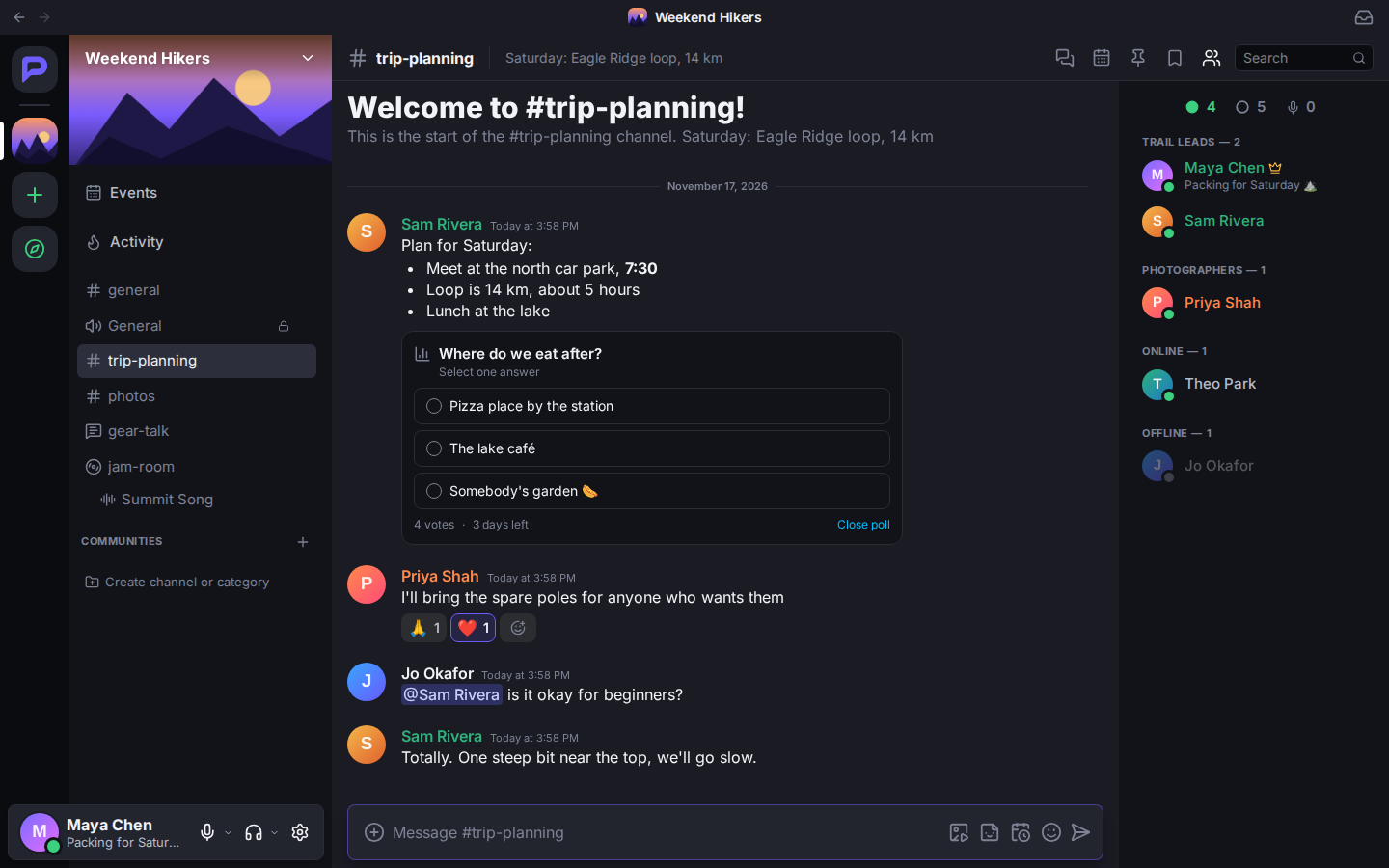
Sending a message
Type in the box at the bottom and press Enter. For a new line without sending, press Shift+Enter.
- Made a typo? Press ↑ in an empty box to edit your last message.
- Half-written messages are kept for each channel. Come back later and your draft is still there.
- A message can be up to 2,000 characters. Anything longer can be sent as a file with one click.
Formatting
Select some text to get a small toolbar: bold, italic, underline, strikethrough, code and spoiler. Or type the formatting yourself:
| Type this | To get | ||||
|---|---|---|---|---|---|
**bold** | bold | ||||
*italic* | italic | ||||
__underline__ | underlined text | ||||
~~strike~~ | struck-through text | ||||
` code ` | code | ||||
| `\ | \ | spoiler\ | \ | ` | text hidden until clicked |
# Big heading (also ##, ###) | a heading | ||||
-# small print | small grey text | ||||
> quote | a quote (>>> quotes everything after it) | ||||
- item or 1. item | a list | ||||
[text](https://…) | a link with your own text |
For a block of code, put three backticks on the line before and the line after. Add a language name after the first three (` `python `) for colours. Code blocks get a Copy button.
Keyboard shortcuts work too: Ctrl+B bold, Ctrl+I italic, Ctrl+U underline, Ctrl+E code.
Mentions
- Type
@and a name to mention someone. They get a notification and the message is highlighted for them. @also finds roles, plus@everyone(everyone in the channel) and@here(everyone online). Servers decide who may use those.- Type
#to link a channel.
Use ↑ and ↓ to pick from the suggestions, and Enter or Tab to choose.
Emoji, stickers and GIFs
The three buttons at the right of the message box open the GIF, Sticker and Emoji pickers.
- Emoji: search, your frequently used ones, every server's custom emoji, and a skin tone choice. Or type
:and a name, like:tada, and pick from the list. - Parley draws emoji in one style on every device, so everyone sees the same thing, flags included, even where the computer's own emoji are out of date.
- Custom emoji from any of your servers work everywhere you can post. Click one in a message to see where it's from.
- Stickers come from your servers.
- GIFs: search, trending and categories. Hover a GIF and click the star to keep it in Favorites.
Reactions
Hover a message and pick from your most-used emoji, or click Add Reaction for the full picker. Add Super Reaction adds an animated one.
Click a reaction under a message to add yours, and click again to take it back. Hover a reaction to see who reacted, or choose View Reactions from the message menu.
Replying, editing and deleting
- Reply quotes the original above your message and notifies its author. Press Esc to cancel.
- Edit Message changes what you wrote. Edited messages say (edited). Click that to see earlier versions.
- Delete Message removes it for everyone.
The message menu
Right-click a message, click its ⋯ button, or press and hold it on a phone. You'll find:
- Reply, Forward, Create Thread
- Copy Text and Copy Message Link
- Pin Message. Pins are listed under the pin button in the top bar (Ctrl+P).
- Bookmark Message: save it for later in your inbox
- Remind Me: in 20 minutes, an hour, 3 hours, tomorrow or next week
- Mark Unread: come back to it later
- Translate, if the server offers it, and Speak Message to hear it read aloud
- Remove Embeds, to hide a link preview
- Report Message, for anything that breaks the rules
Files, pictures and videos
Click + and Upload a File, drag files onto the chat, or paste them.
- Up to 10 files per message, normally 25 MB each. Your server's host may allow more.
- Before sending, you can Mark as spoiler or Add alt text: a description for people who use screen readers.
- Pictures open full size when clicked. Videos and audio play right in the chat.
Voice messages
Click + and Record Voice Message. Talk, then send it or throw it away. Listeners can speed it up to 1.5× or 2×. If the server has transcripts turned on, they can also read it.
Polls
Click + and Create Poll:
- Write a question and 2 to 10 answers. Each answer can have an emoji.
- Choose whether people can pick more than one answer.
- Choose how long it runs, from 1 hour to a week, or with no end.
- Click Post Poll.
Results update live. Whoever made the poll can close it early.
Scheduling a message
Write your message, then right-click the Send button (on a phone, press and hold it) and choose Schedule Message. Pick a time like Tomorrow morning, or choose Custom.
You can have up to 30 scheduled messages. Find them under Scheduled in your inbox, where you can Send Now, edit or delete them.
Forwarding
Forward sends a copy of a message to other channels or people. It's labelled Forwarded and stays even if the original is deleted.
Slash commands
Type / at the start of the box to see the commands you can use:
| Command | Does |
|---|---|
/shrug /tableflip /unflip /lenny | Adds the face to your message |
/me | Sends your message in italics, as an action |
/spoiler | Hides your whole message until clicked |
/tts | Reads your message aloud to everyone viewing the channel |
/nick | Changes your nickname in this server |
Apps and bots in the server add commands of their own. See Apps and bots.
Summaries
Busy channel? The Summaries button in the top bar gives a quick summary of the last couple of days. Summaries are written automatically, so check the original messages before relying on them. Servers can turn this off.