Your profile
Your picture, banner, name style, nameplate, decorations and effects, status, and a different look per server.
Your profile is what people see when they click your name. Open the editor from your picture in the bottom-left corner, then Edit Profile.
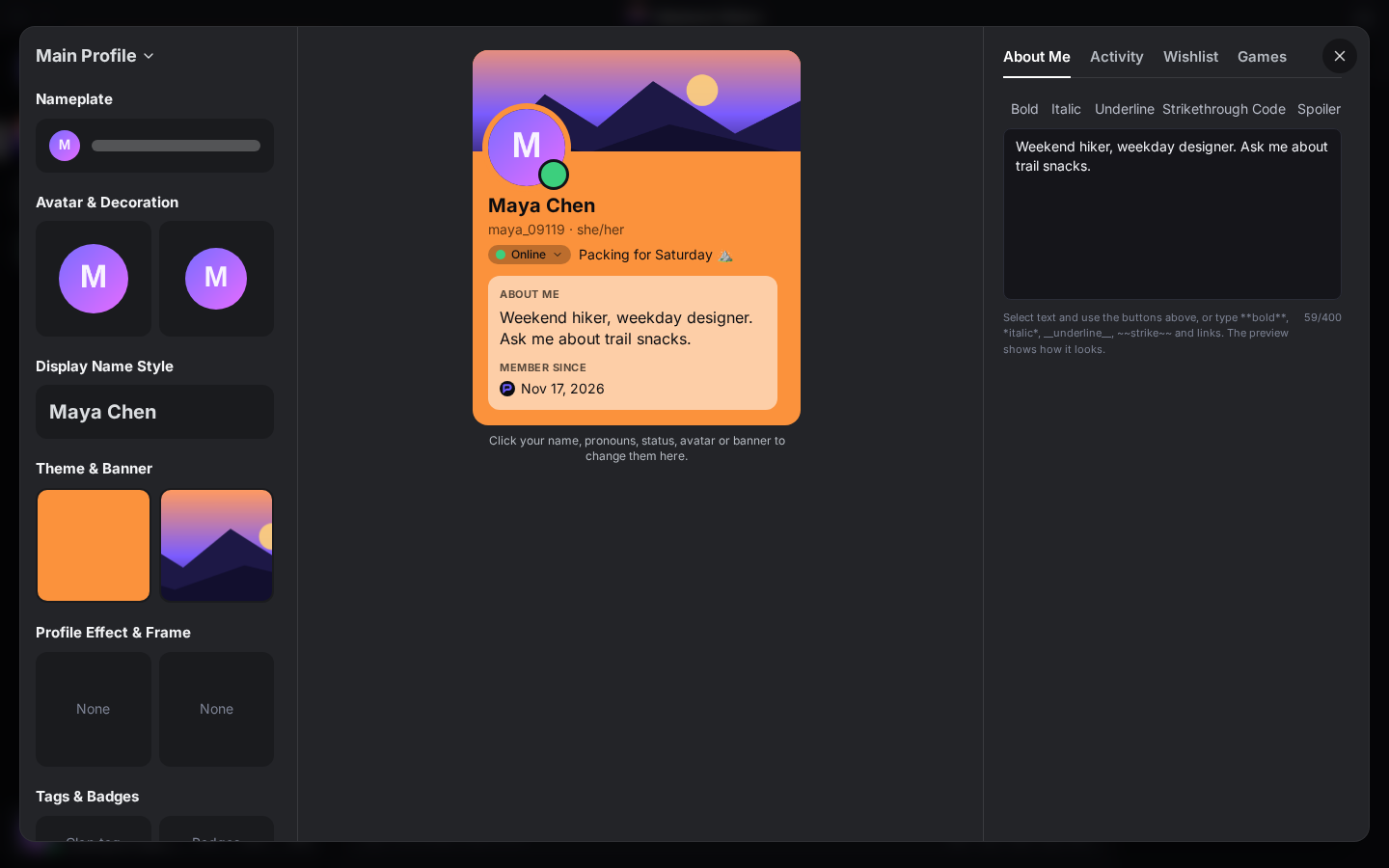
The editor shows a preview of your card as you go. Click your name, pronouns, status, picture or banner in the preview to jump straight to it. Nothing changes for anyone else until you click Save Changes.
The basics
| Part | Notes |
|---|---|
| Display name | The name people see. Up to 32 characters. |
| Pronouns | Up to 40 characters. |
| About Me | Up to 400 characters, with formatting. |
| Avatar | PNG, JPEG, GIF or WebP up to 8 MB. Animated pictures stay animated. You crop it to a circle, and Recent avatars lets you go back to an old one. |
| Banner | The wide picture at the top of your card. Cropped to 5:2. Around 1200×480 pixels works best. |
| Profile theme | Two colours that tint your card from top to bottom. |
Your username is different from your display name. Change it in User Settings → Account, at most once a day.
Nameplate, decoration, effect and frame
These add some style:
- Nameplate: a background behind your name in member lists.
- Avatar decoration: a ring or ornament around your picture.
- Profile effect: an animation that plays over your card.
- Profile frame: a border around your whole card.
Click any of these tiles in the editor to open its picker:
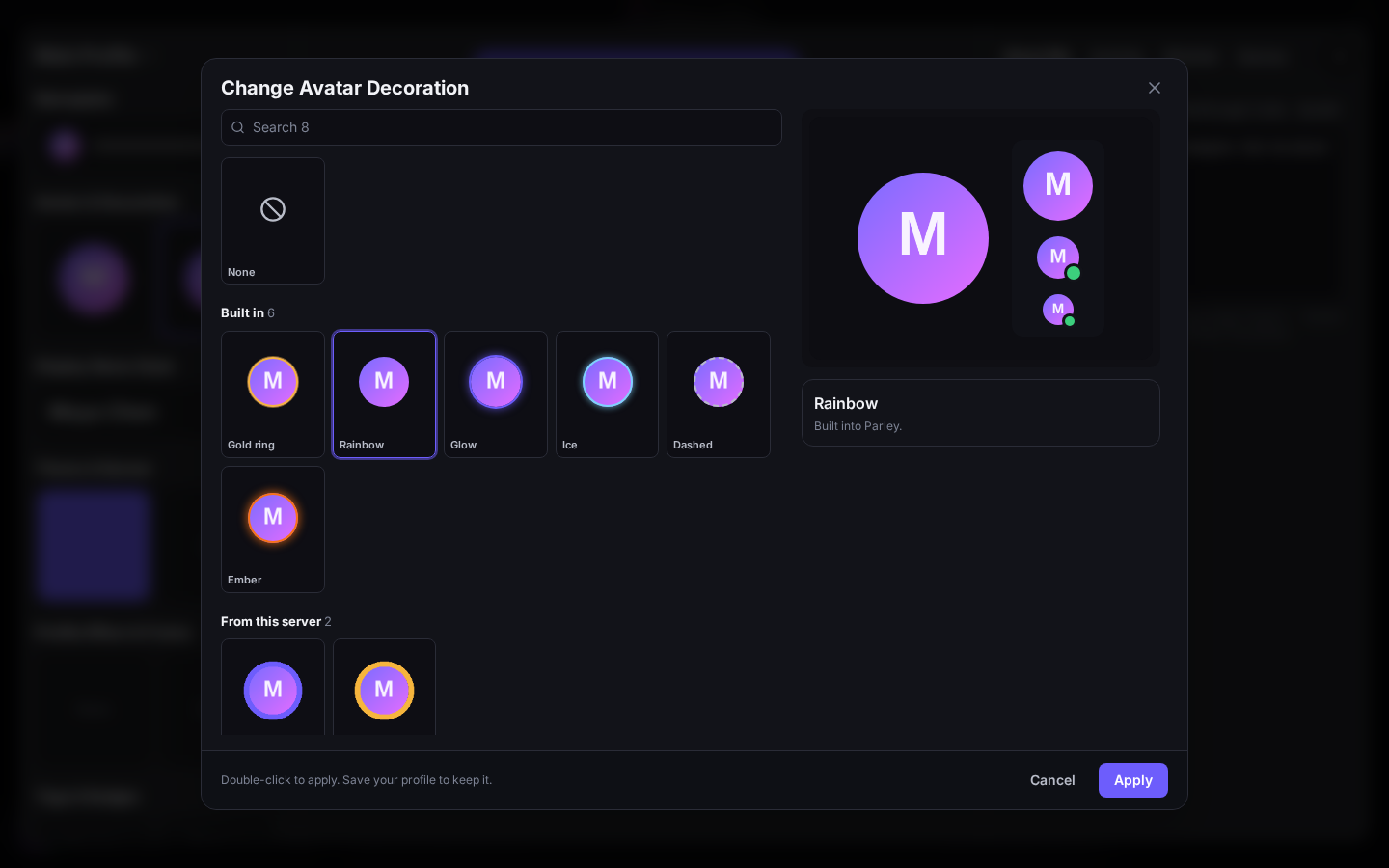
- Browse the grid, or search by name. None removes the one you have.
- Hover or click an option to see it in the preview, exactly where people will see it. Decorations show at every size, nameplates in a member list, and effects and frames on your whole card.
- Click Apply, or double-click an option. Then Save Changes to keep it.
The grid keeps loading as you scroll, so you'll see everything. Built in options come with Parley; From this server are extras your Parley server's host has added.
Display name style
Display Name Style sets the font, an effect (like a gradient or glow) and colours for your name. Not sure? Try Surprise Me. In servers, a coloured role takes over your name colour.
Tags and badges
- Clan tag: 2 to 4 letters or numbers shown beside your name everywhere.
- Server tag: wear the tag of a server you're in, if it has one.
- House badge: join House of Ember, Tide or Grove. Click your house again to leave.
Your status
Click your picture in the bottom-left corner:
- Online, Idle, Do Not Disturb (no notification pop-ups or sounds) or Invisible (you look offline, but can still use everything). You can pick one for a while, and Parley switches back afterwards.
- Set a custom status: an emoji and up to 128 characters, cleared after a set time or kept until you clear it.
If you connect Spotify (User Settings → Connections), people can see what you're listening to.
A different profile per server
You can look different in each server, say a work-friendly picture in one and a silly one in another. Open the server menu and choose Edit Server Profile, or use the Server Profiles tab in the editor. You can set:
- Server nickname
- Server avatar and Server banner
- Pronouns and About me
Anything you leave empty uses your main profile. You can also change just your nickname with /nick in the message box.
Who sees your profile
In the editor, Who can see your full profile can be Everyone or Friends only. Optional sections, such as Wishlist and Games, show only if you fill them in.